

Referral Discounts & Coupons
This page covers the referral discount your customers receive on a WooCommerce store: what it looks like in the cart, the settings you control, and the message customers see. You set all of this in your AdvocateLoop dashboard — there’s no coupon to create or manage in WooCommerce.
How the discount appears in the cart
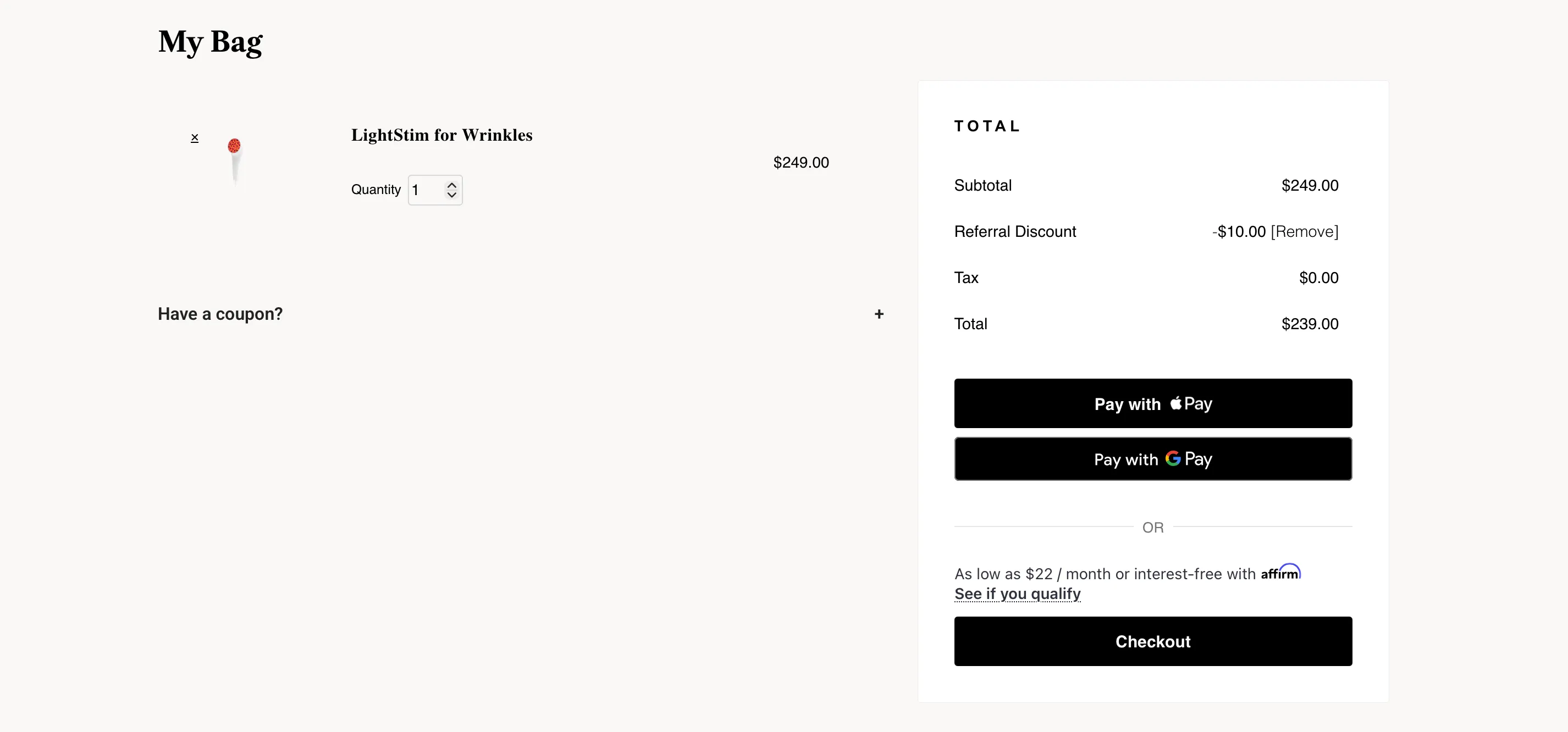
The referral discount appears as a coupon line in the cart totals. You don’t need to create or manage any coupon in WooCommerce.
The customer sees something like:
| Subtotal | $100.00 |
|---|---|
| Discount (V2AVMRDJ) | −$15.00 |
| Shipping | $5.00 |
| Total | $90.00 |
The label on the discount line is configurable in your dashboard under Configure → Widget.
Discount types
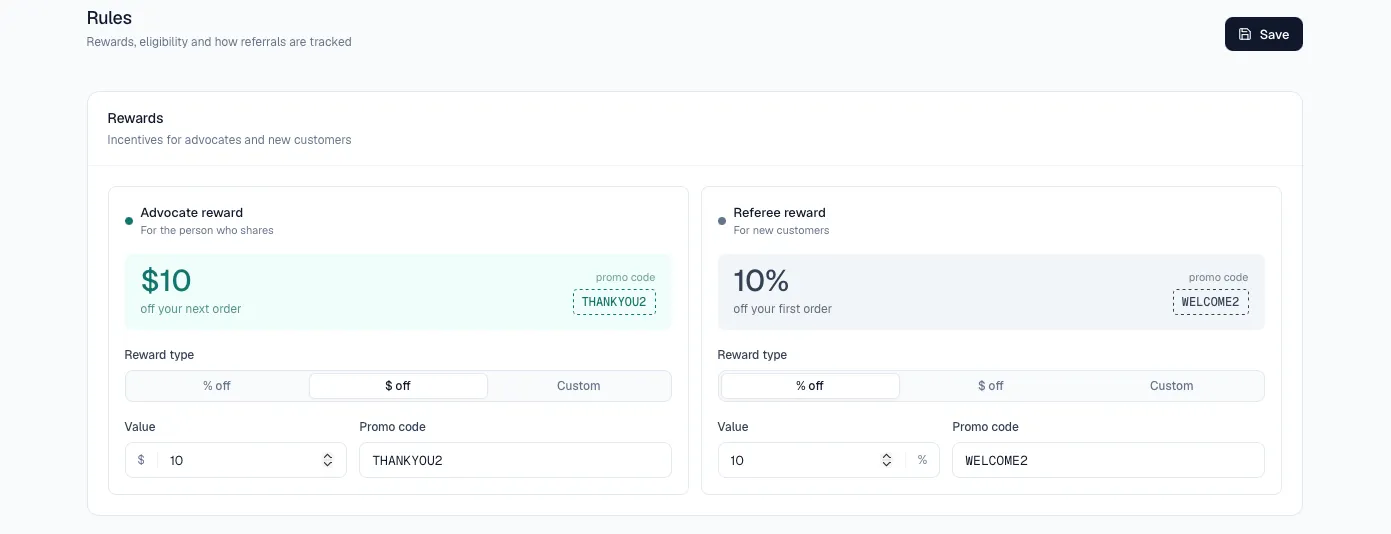
Set the discount type and amount in your dashboard under Configure → Rewards. The supported types are:
- Percentage off — for example, 15% off the cart subtotal
- Fixed amount off — for example, $10 off the cart subtotal
- Free shipping — waives shipping costs
Whatever you configure is what WooCommerce applies. No additional setup on the WooCommerce side.
Minimum purchase amount
If you set a minimum purchase amount (for example, “discount applies on orders of $50+”), the discount applies only when the cart subtotal (line items before tax, shipping, and other discounts) meets that minimum. Below it, the customer sees the cart without a discount line.
If a cart is sitting just below the minimum, you can encourage another item with the share widget or your own on-page messaging.
Maximum discount amount (cap)
The maximum discount setting acts as a ceiling on the discount value:
- “15% off, max $20” → a $100 cart gets $15 off; a $1,000 cart gets $20 off (not $150)
- “$10 off, max $10” → every qualifying cart gets exactly $10 off
This is most useful with percentage discounts — it protects your margin on larger orders. The customer never sees more than the maximum you’ve set.
Stacking with other coupons
By default, referral discounts can be combined with other coupons. A customer could apply the referral discount and a separate promo code (such as FREESHIP) together.
To prevent stacking so the referral discount is the only one allowed, turn on Individual use for the discount in your dashboard under Configure → Rewards. With individual use on:
- Applying the referral discount removes other coupons from the cart
- Applying a different coupon removes the referral discount
The customer is informed by the standard WooCommerce coupon-conflict messaging.
First-purchase-only restriction
If your reward is configured as first purchase only (under Configure → Rewards), the discount is offered only to customers who haven’t ordered from your store before.
Customer-facing messaging
When the discount applies, the customer sees a confirmation message in the referral code section at checkout — for example:
Referral code V2AVMRDJ applied! You’re getting 15% off.
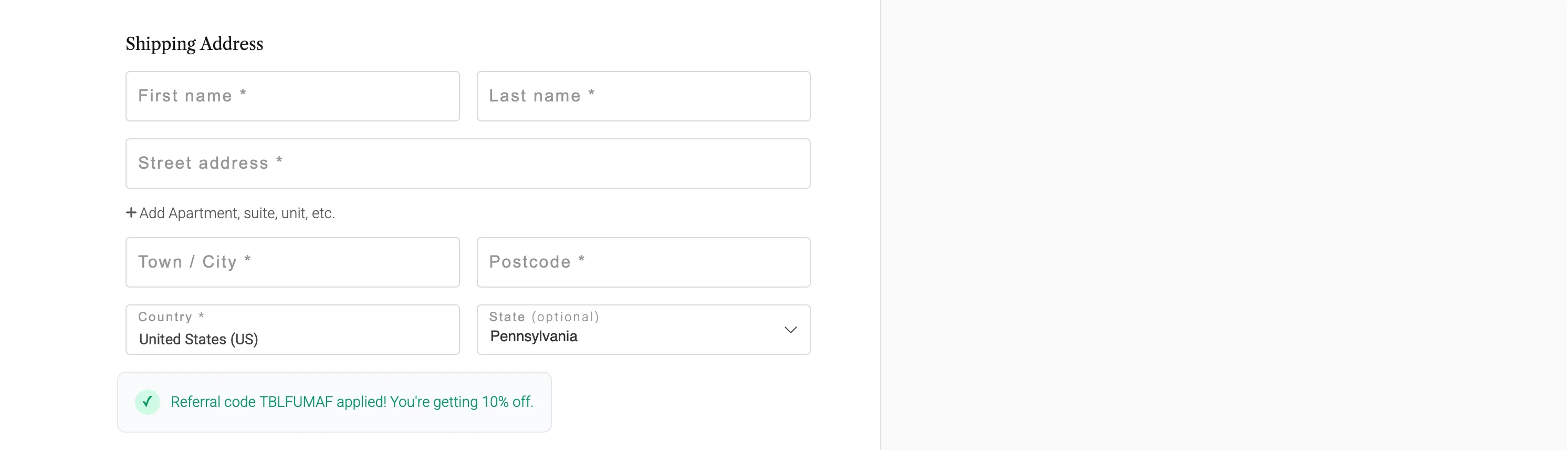
To customize the wording:
- In your dashboard, go to Configure → Widget
- Edit the Checkout applied message field
- Save — the change takes effect on the next page load (no WordPress cache to clear)
This message appears in one place only — the referral code area at checkout — to keep the page clean.
What you can change vs. what’s automatic
| What | Where to change it |
|---|---|
| Discount type (%, $, free shipping) | Dashboard → Configure → Rewards |
| Discount value | Dashboard → Configure → Rewards |
| Minimum purchase amount | Dashboard → Configure → Rewards |
| Maximum discount cap | Dashboard → Configure → Rewards |
| First-purchase-only restriction | Dashboard → Configure → Rewards |
| Individual use (no stacking) | Dashboard → Configure → Rewards |
| Customer-facing applied message | Dashboard → Configure → Widget |
| Discount line label in cart | Dashboard → Configure → Widget |
| Whether the discount auto-applies | Automatic — applied for qualifying carts |
| Coupon code that’s used | Handled automatically |
If a referred customer didn’t get the discount
This is almost always a setup or test-environment detail rather than a mystery. The Troubleshooting page walks through what to check, step by step.
Related
- What Happens on Your Store — What a referred customer experiences end to end
- Settings — Plugin settings that affect WooCommerce behavior
- Troubleshooting — Diagnose a discount that didn’t appear