

Find Your API Key & Brand ID
Every way of connecting to AdvocateLoop — the WordPress plugin, the JavaScript snippet, the API — uses the same two values:
- API Key — authenticates your requests to AdvocateLoop.
- Brand ID — a unique identifier (UUID) for your brand, so requests are attributed to the right program.
Where to find them
Both are in your dashboard at app.advocateloop.com under Admin → Developers.
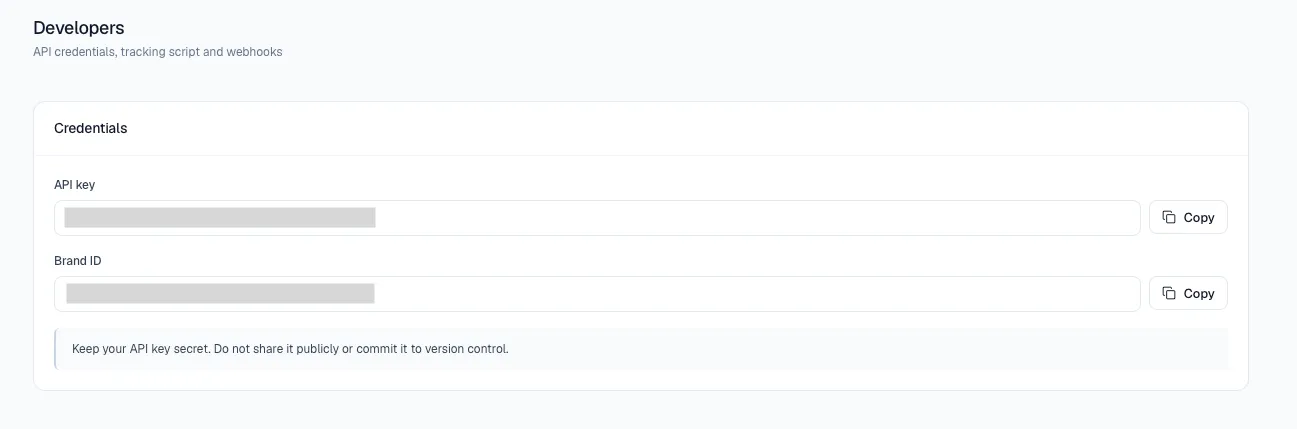
About the API Key
- The API key is shown sensitive, treat this as a password.
- If you lose it, you can generate a new one — but generating a new key invalidates the old one immediately, so any integration still using the old key will need to be updated.
About the Brand ID
- Your Brand ID is always visible in the dashboard — it doesn’t change and isn’t secret in the way the API key is. The JavaScript snippet, for example, includes the Brand ID in its script URL.
Where you’ll use them
| Integration | What it needs | Where it goes |
|---|---|---|
| WordPress / WooCommerce plugin | API Key + Brand ID | Plugin Connection settings — see Plugin Setup |
| JavaScript (any website) | Brand ID | Embedded in the script tag — see Quick Start: JavaScript |
| Server-to-server API | API Key + Brand ID | Request headers — see API reference |
Keep your API key safe
Treat the API key like a password: don’t commit it to public repositories or expose it in client-side code. The Brand ID is fine to include in browser-side snippets (that’s by design); the API key is not — keep it server-side or in plugin settings.