

Team & Account
Manage who has access to your brand and how your account is billed.
Team members
Invite people who need access to your AdvocateLoop dashboard.
- Go to Admin → Access in your dashboard.
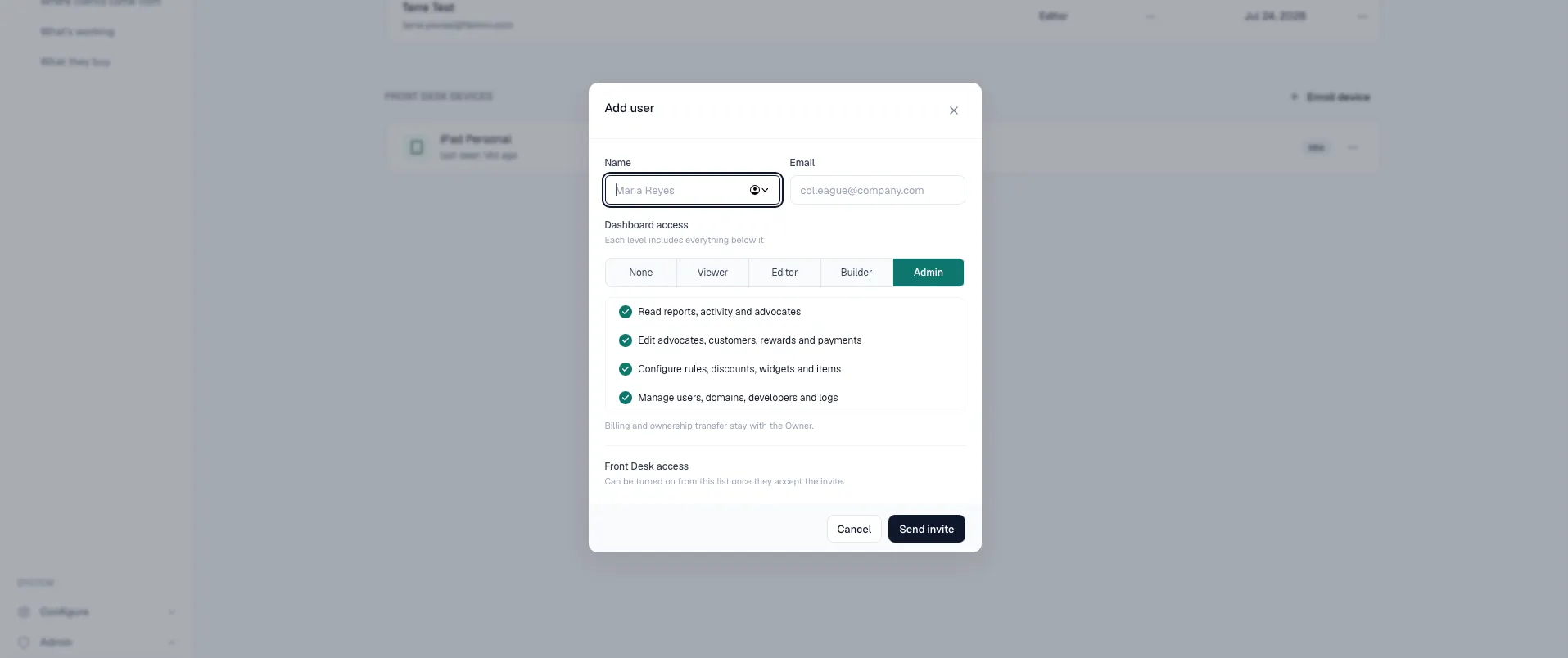
- Click Add user and enter their name and email.
- Choose their dashboard access level.
They receive an email invitation.
Roles
Each level includes everything below it. A Builder can do everything an Editor can, plus configure your program.
| Role | Adds |
|---|---|
| Viewer | Read reports, activity and advocates |
| Editor | Edit advocates and customers, record payments, issue refunds, resolve unattributed orders |
| Builder | Configure your program: rules, rewards, discounts, widgets and items |
| Admin | Manage users, allowed domains, API keys, webhooks, logs and billing |
| Owner | Transfer ownership of the account |
Anyone can remove their own access from the Users page.
There is one Owner per account. To hand the account to someone else, use Transfer ownership on the Users page.
Front Desk access
Front Desk is not a role. It is a separate switch you can turn on for anyone, on top of whatever dashboard access they have, and it lets them sign in to the Front Desk tablet app with a personal PIN.
That means two independent choices when you add someone:
- A receptionist who only works the front desk. Set dashboard access to No dashboard access and turn on Front Desk. They get a PIN and never sign in to the web app.
- A manager who also covers the desk. Give them a dashboard role and turn on Front Desk as well.
The PIN is shown once when it is created and cannot be retrieved later. If someone forgets theirs, regenerate it from the Users page.
Everyone sees the same thing on the tablet regardless of their dashboard role. Customer contact details stay hidden until a staff member confirms their PIN.
Disabling and removing people
Disable suspends someone’s access to both the dashboard and the Front Desk tablet, without removing them from your account. Re-enable them at any time.
Remove takes them out of the account entirely.
Plan & billing
View your current plan, change plans, and manage payment details.
- Change plan — move between tiers as your program grows. See pricing for current plans.
- Manage billing — update payment method, view invoices.